NSFW AI Image Generator
Describe the picture you want to make: an adult character, a place and the light around them. Start with a still you can inspect, then decide whether it is ready for animation.
Create an image18+ · Model-specific content rules apply · Check the estimate in Studio
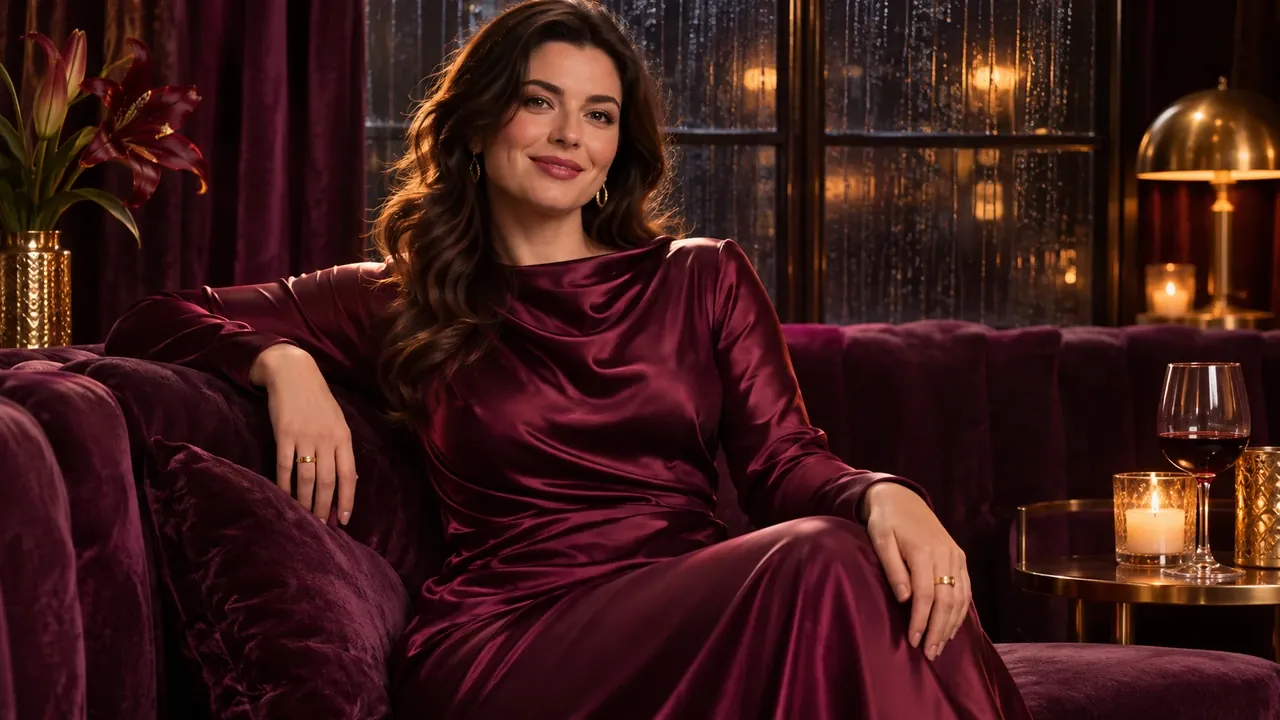
Build the look before you animate it
Text to image creates a still from a written prompt. Use it to explore an adult fictional character, a location or a lighting idea before you have a reference picture.
- Input
- A written image brief
- Output
- A generated still image
- Settings and cost
- See the request estimate in Studio and current pricing.
- Permissions
- Use authorized adult material. Read the guidelines.
How to use text to image
Describe the visual idea
Start with one adult subject, a setting, framing and light. Keep details that affect the image and remove conflicting instructions.
Review the setup
Open Image generation in Studio. Choose from the available models and settings, check the estimate and sign in when prompted.
Inspect and refine
Review the composition and details in the result. Change one part of your brief at a time, or use an image you are happy with as the starting frame for a video.
Make your image brief easier to revise
Decide what leads the frame
Name the subject first, then describe its position and the surrounding scene. An uncluttered brief makes it easier to identify what changed in the result.
Separate style from content support
A visual style does not establish which adult requests a model accepts. Review the current tool options and content rules before creating.
Start with a focused brief
- A vague brief
- A beautiful cinematic portrait.
- A focused brief
- An adult fictional character in a burgundy evening dress, seated beside a window in a candlelit lounge. Medium portrait, warm side lighting, quiet cinematic composition.
The second brief chooses the subject, framing, location and light. If the composition misses, you have a specific instruction to revise instead of adding more praise words.
These are writing examples, separate from the reference media. Use the focused brief as a starting point and change it to fit your scene.
Use this brief in StudioFills the prompt. You decide when to generate.
What to check in the result
- Does the framing leave room around the subject?
- Are hands, face and background details suitable for your intended use?
- Which one instruction would you change for another attempt?
Task background: Hugging Face — text to image. This explains the general workflow, not model availability on NSFWGens.
Questions about text to image
Find more answers in Help & support.
Do I need a source picture to start?
No. Choose From text in the Image generation form. If you already have a picture whose look you want to build on, switch to Use an image instead.
What should I describe for a portrait?
Name an adult subject, the crop or camera distance, the setting and one lighting direction. Start with a small set of visual choices; add detail only when you can see what is missing.
How do I choose the image shape?
Decide where the picture will be used, then choose a matching aspect or size option if the selected model offers it. A portrait crop and a wide scene need different compositions.
Can I take a finished image into a video?
Use Animate this image on an available image result, or open Image to video with an image you are allowed to use. Check the still for unwanted details before asking for motion.