NSFW Image to Video AI Generator
Already have the look? Start with an image you can use and direct a small movement: a turn, a gesture or a camera move. Inspect the full take before planning the next one.
Animate an image18+ · Model-specific content rules apply · Check the estimate in Studio
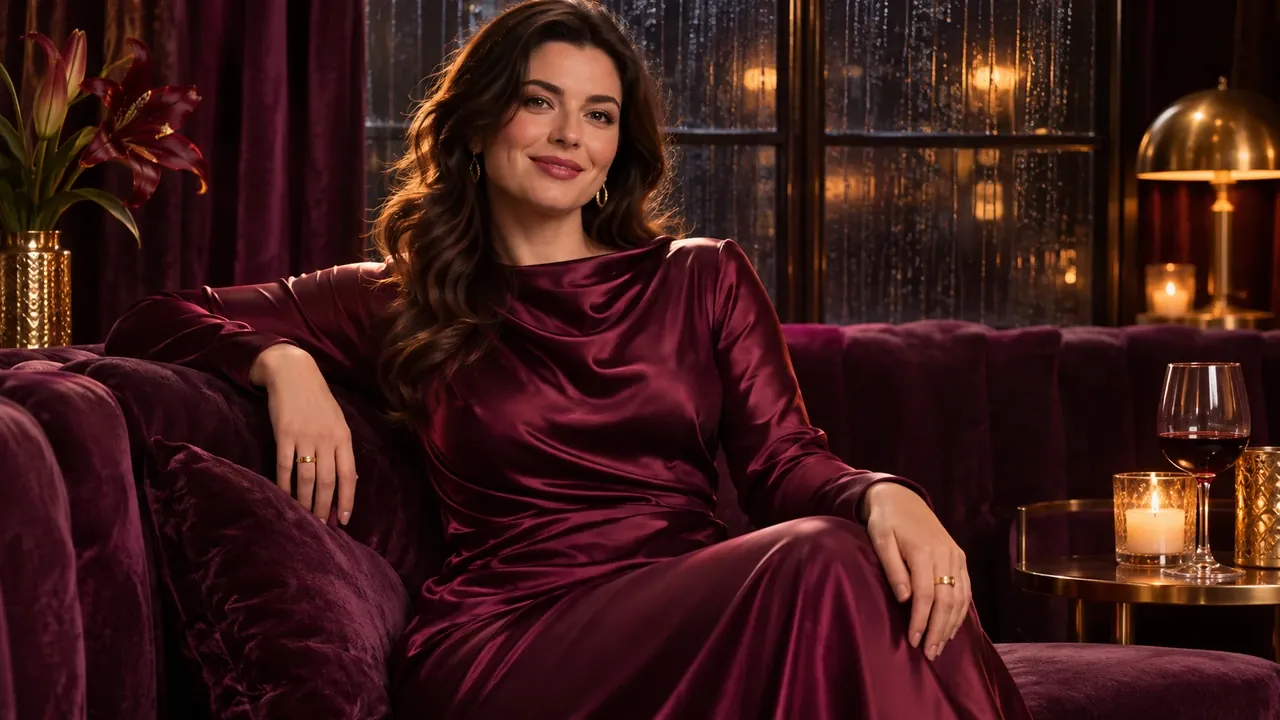
Keep the starting frame. Describe the movement.
Image to video creates a moving clip from a still picture, with a prompt guiding the action. The image supplies the opening look; the motion brief describes what should happen next.
- Input
- An authorized image and a motion brief
- Output
- A generated video
- Settings and cost
- See the request estimate in Studio and current pricing.
- Permissions
- Use authorized adult material. Read the guidelines.
How to use image to video
Choose your starting frame
Use a clear image with the composition you want to animate. Confirm permissions and review the selected model’s upload limits.
Direct one movement
Open Image to video in Studio. Describe one subject action and a camera direction, then review the available duration, framing and estimate.
Review the complete take
Check the beginning, middle and end for intended movement, appearance changes and framing. Use My creations to check an existing task before submitting again.
Keep the first motion study focused
Describe what changes
The source picture already supplies visual context. Spend the motion brief on the intended action instead of repeating every visible object.
Simplify competing movement
If the action becomes unstable, try a smaller gesture or a steadier camera. Keeping other settings consistent makes the next attempt easier to assess.
Start with a focused brief
- A vague brief
- Make this image move beautifully with a dramatic camera.
- A focused brief
- The adult fictional subject makes a small head turn toward the window. A gentle camera push-in keeps the portrait framed; the room and lighting remain calm.
The second brief separates subject movement from the camera move. If the shot becomes unstable, remove one of those movements and compare the next take.
These are writing examples, separate from the reference media. Use the focused brief as a starting point and change it to fit your scene.
Use this brief in StudioFills the prompt. You decide when to generate.
What to check in the result
- Does the intended action happen from beginning to end?
- Do appearance or background changes make the take unsuitable?
- Does the subject stay inside the frame during the camera move?
Task background: Hugging Face — image to video. This explains the general workflow, not model availability on NSFWGens.
Questions about image to video
Find more answers in Help & support.
Should I describe everything already visible in the picture?
Spend most of the brief on what changes. Name the subject action and camera direction; repeat a visible detail only when it matters to the movement you want.
What should I try if the face or body changes during the clip?
Inspect the entire take, then try a smaller gesture or a steadier camera. Keep the other choices consistent so you can judge that revision. The source image does not guarantee an unchanged likeness.
Can I choose how long the video will be?
Choose from the duration options supplied by the selected setup in Studio. This page does not promise a particular clip length; check the estimate after changing settings.
When should I revise the starting image instead of the motion?
If the still is cropped too tightly or contains an unwanted detail, address that first. Movement can make those problems more visible. Image generation with a reference is a separate option for exploring a new still.